Everyframe · Editor
Fix what Everyframe made,
by hand.
Open a video from your Library. Trim it, cut a part out, change the order, set the music. No new prompt and no new run. Your own clips work here too.

- Open any video in your Library
- Picture, clip sound and music on one timeline
- Every edit renders into your Library
01 · The jobs
What did you come to do?
Pick a job. Each one shows what you do by hand in Editor, and what you can ask Everyframe to do from a prompt.
 Job 01
Join clips into one video
In Editor, by hand
 Job 02
Cut a talk to its best parts
In Editor by hand, or from a prompt
 Job 03
Captions and music on a clip
Music in Editor, captions from Everyframe
 Job 04
One edit in three sizes
9:16 in Editor, every size from Everyframe
Job 01
Join your clips into one video.
Four clips from a shoot. One short video for a post. Everything this job needs is in Editor today.
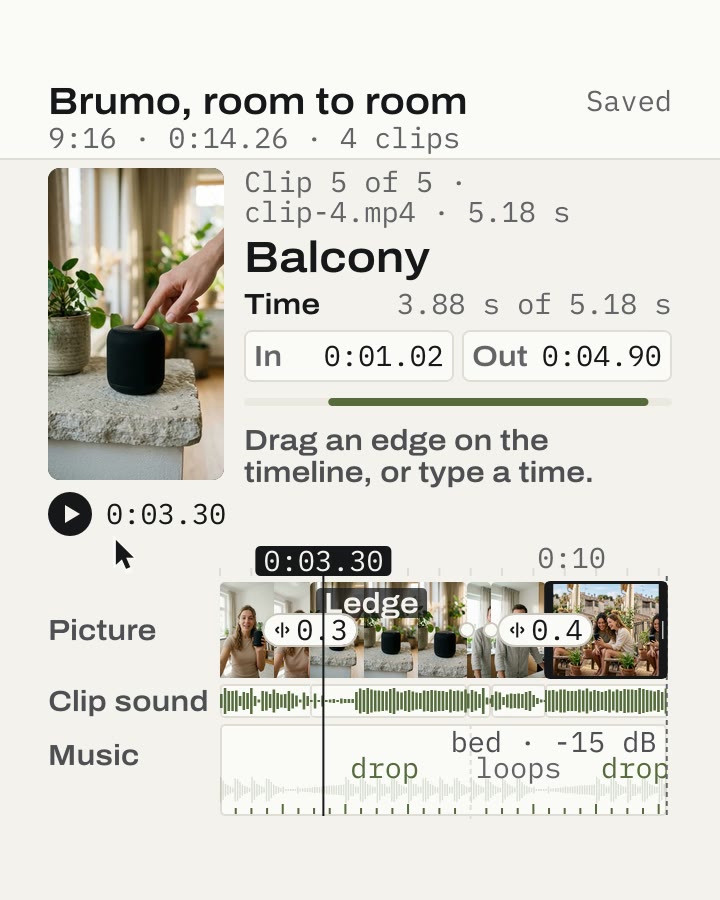
- 1 Pick your clips in the Library.
- 2 Trim each one by its edge and drag them into order.
- 3 Press a seam to put a transition on it.
- 4 Pick a song for the Music track and set its level.
- 5 Render. The video lands in your Library.
Editor, by hand: the sample edit trimmed and moved on the timeline.
Job 02
Cut a talk down to its best parts.
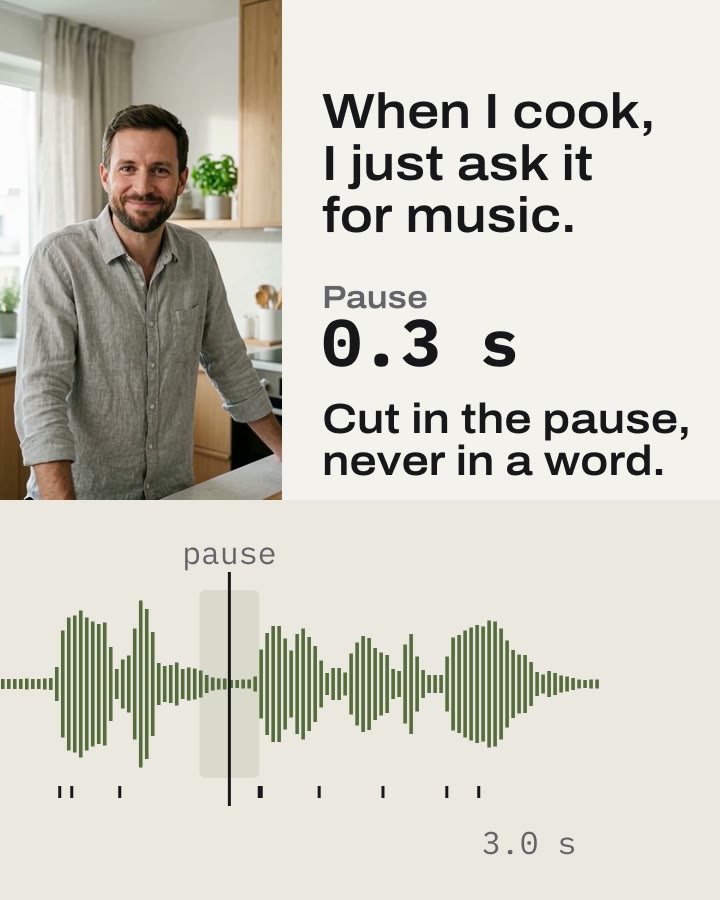
A long take with a few good minutes in it. Cut the rest out by hand. Or ask Everyframe to take the long pauses out first.
- 1 Put the playhead where a good part ends and press Split.
- 2 Remove the parts you don’t need.
- 3 Trim each end by its edge, then render.
Everyframe, from a prompt: the pause cut shorter, never inside a word.
Job 03
Put captions and music on a clip.
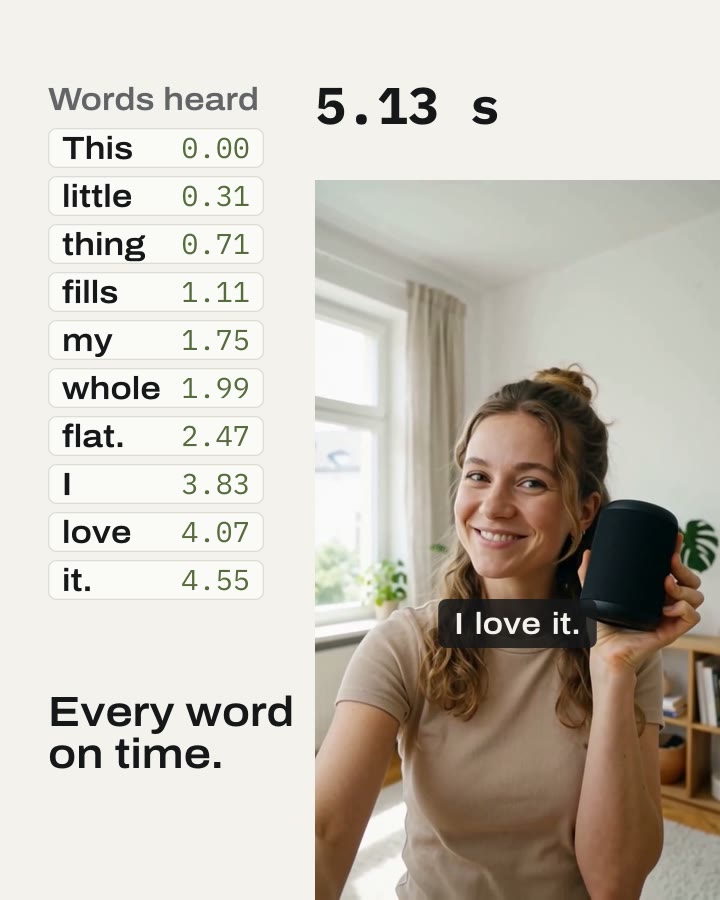
A clip that has to work with the sound off, and sound good with it on. The music is in Editor. The captions come from Everyframe.
- 1 Pick a song from your Library for the Music track.
- 2 Set its level and the moment it comes in.
- 3 Turn the clip’s own sound up or down, or mute it.
Captions on their own track in Editor Coming soon
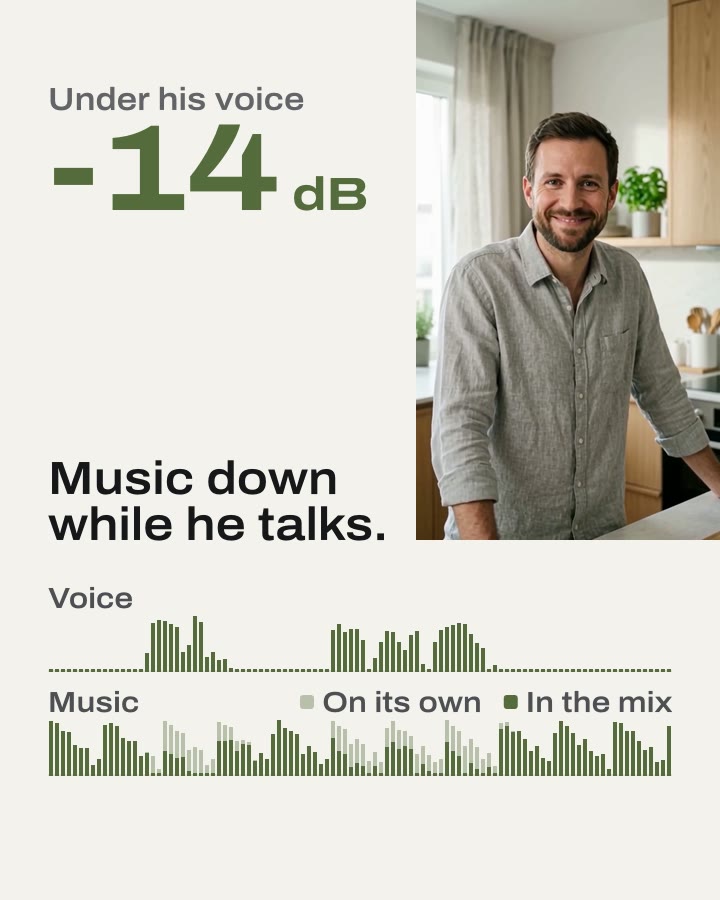
Everyframe, from a prompt: captions word by word, and the music lowered under the voice.
Job 04
Make one edit in three sizes.
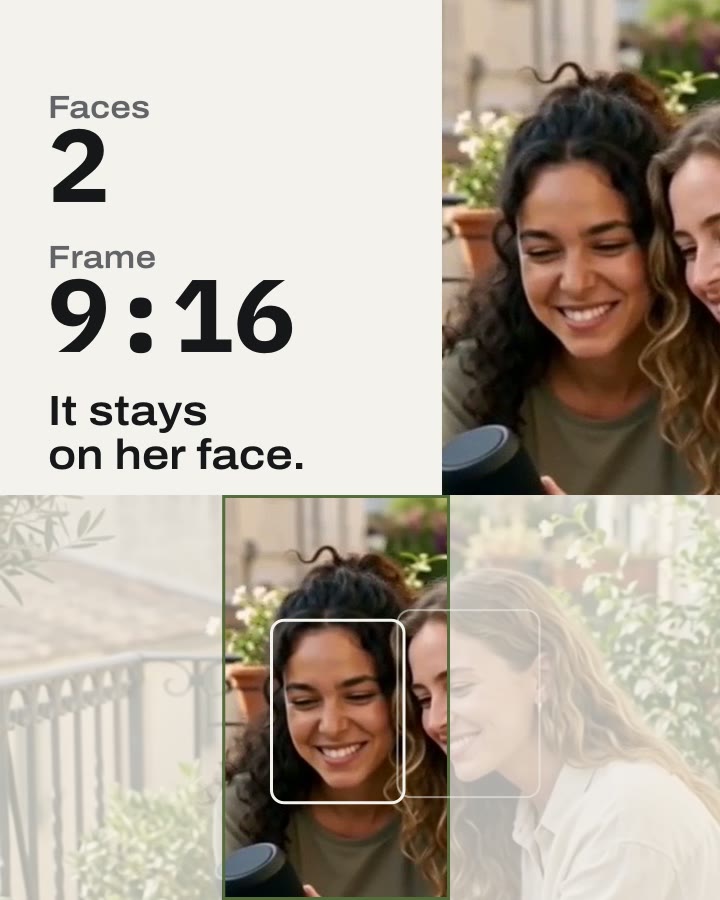
The same video for Reels, the feed and a square post. Editor renders 9:16. Everyframe makes the other sizes and follows the face that matters.
- 1 Render your edit in 9:16, 1080 × 1920.
- 2 Find it in your Library, ready for Reels, Shorts and TikTok.
4:5, 1:1 and 16:9 from Editor Coming soon
Everyframe, from a prompt: a 9:16 frame that follows the face that matters.
02 · Trim and arrange
In Editor todayDrag an edge to trim. Drag a clip to move it.
Each clip on the timeline shows its frames and its sound, so you see where to cut. Edges snap to the playhead, a cut, a beat or a word.
- Trim Drag a clip’s edge, or type its In and Out.
- Move Drag a clip to a new place.
- Split Cut a clip in two at the playhead.
- Undo Every press is one step back. The last 50 are kept.


03 · Transitions
In Editor todayA transition on any seam.
Press the chip between two clips. Pick a move and its length. Use it on one seam, or on every seam.
- Moves 58, in five families: Clean, Slide, Wipe, Shape, Zoom and blur.
- Length From 0.2 to 1 second.
- Render Each move is in the rendered video.

04 · Music and sound
In Editor todayMusic under the picture. Each clip at its own level.
Pick a sound from your Library for the Music track. Set its level and the moment it comes in. Click a clip to type its own level, or tick Mute.


05 · Render
In Editor todayRender it. The video lands in your Library.
Editor makes your edit into one 9:16 video, 1080 × 1920, for Reels, Shorts and TikTok. Composer and Everyframe find it in the same Library.
- Versions Made from one video, the new file lands under it as a version. The video you started from stays as it was.
- Limits Up to 3 minutes and 40 clips an edit.
- Clips Save as clip keeps part of a video for Composer, with nothing copied.


06 · Not yet
Coming soonWhat it does not do yet.
These are coming to Editor. Some of them Everyframe does today, from a prompt. Open what it makes in Editor and finish it by hand.
- A video from Everyframe opened as its shots, words and music Until then · Nothing yet.
- Text and titles on their own track Until then · Everyframe makes titles and end cards from a prompt.
- Captions on their own track Until then · Everyframe adds captions that light each word as it is said.
- Sound effects on their own track Until then · Nothing yet.
- A logo or a second clip over the picture Until then · Nothing yet.
- Cuts suggested in the pauses Until then · Everyframe cuts the long pauses from a prompt.
- Edits suggested on the beat Until then · Everyframe cuts your clips on the beat of a song.
- A moment slowed down, then sped back up Until then · Nothing yet.
- 4:5, 1:1 and 16:9 from the same edit Until then · Everyframe makes every format and follows the face that matters.
Each suggestion will wait for you. You keep it or drop it.
Try it on your next video.
Open what Everyframe made, or bring your own clips.
07 · FAQ
Questions about Editor.
What is Editor?
Editor is where you fix by hand what Everyframe made. Open a video from your Library, trim it, cut a part out and set the music. You can edit your own clips here too.
When do I use Editor, and when Everyframe?
Ask Everyframe to make the video. When most of it is right and a detail is not, open it in Editor and fix it yourself, with no new prompt. Ask Everyframe again when a job is slow by hand, like captions on every word or every size of a video.
Do I need to install anything?
No. Editor runs in your browser. Your clips stay in your Everyframe Library, where every tool finds them.
How long can an edit be?
Up to 3 minutes, with up to 40 clips. Editor renders it as one 9:16 video into your Library.
What does Editor cost?
Editor comes with every Everyframe plan. The plans are on the pricing page .