Everyframe · Cut
A real video editor,
in your browser.
Trim, split and arrange your clips on a timeline. Put a transition between any two shots and lay music under them. When a job is slow, ask Everyframe to do it.

- Picture, clip sound and music on one timeline
- 58 moves for any seam
- Every edit renders into your Library
01 · The jobs
What did you come to do?
Pick a job. Each one shows what you do by hand in Cut, and what you can ask Everyframe to do from a prompt.
 Job 01
Join clips into one video
In Cut, by hand
Job 01
Join clips into one video
In Cut, by hand
 Job 02
Cut a talk to its best parts
In Cut by hand, or from a prompt
Job 02
Cut a talk to its best parts
In Cut by hand, or from a prompt
 Job 03
Captions and music on a clip
Music in Cut, captions from Everyframe
Job 03
Captions and music on a clip
Music in Cut, captions from Everyframe
 Job 04
One edit in three sizes
9:16 in Cut, every size from Everyframe
Job 04
One edit in three sizes
9:16 in Cut, every size from Everyframe
Job 01
Join your clips into one video.
Four clips from a shoot. One short video for a post. Everything this job needs is in Cut today.
- 1 Pick your clips in the Library.
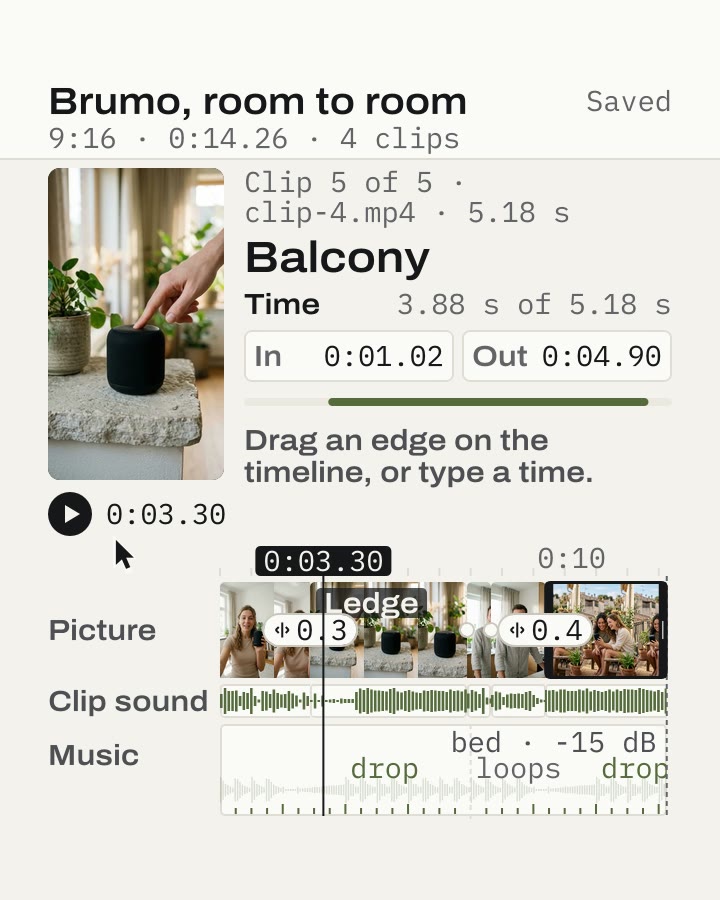
- 2 Trim each one by its edge and drag them into order.
- 3 Press a seam to put a transition on it.
- 4 Pick a song for the Music track and set its level.
- 5 Render. The video lands in your Library.
Cut, by hand: the sample edit trimmed and moved on the timeline.
Job 02
Cut a talk down to its best parts.
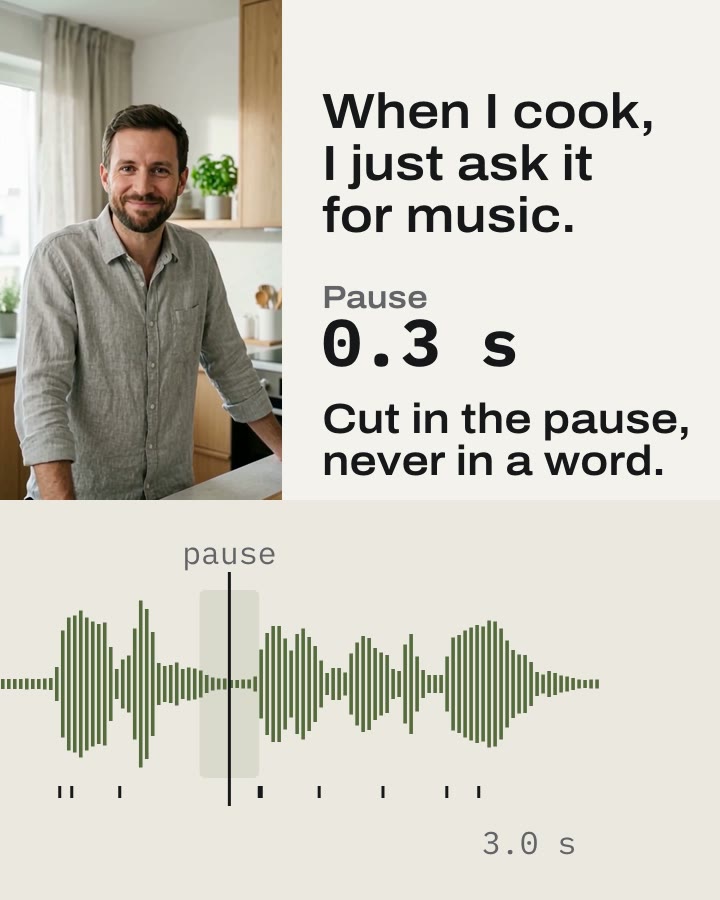
A long take with a few good minutes in it. Cut the rest out by hand. Or ask Everyframe to take the long pauses out first.
- 1 Put the playhead where a good part ends and press Split.
- 2 Remove the parts you don’t need.
- 3 Trim each end by its edge, then render.
Everyframe, from a prompt: the pause cut shorter, never inside a word.
Job 03
Put captions and music on a clip.
A clip that has to work with the sound off, and sound good with it on. The music is in Cut. The captions come from Everyframe.
- 1 Pick a song from your Library for the Music track.
- 2 Set its level and the moment it comes in.
- 3 Turn the clip’s own sound up or down, or mute it.
Captions on their own track in Cut Coming soon
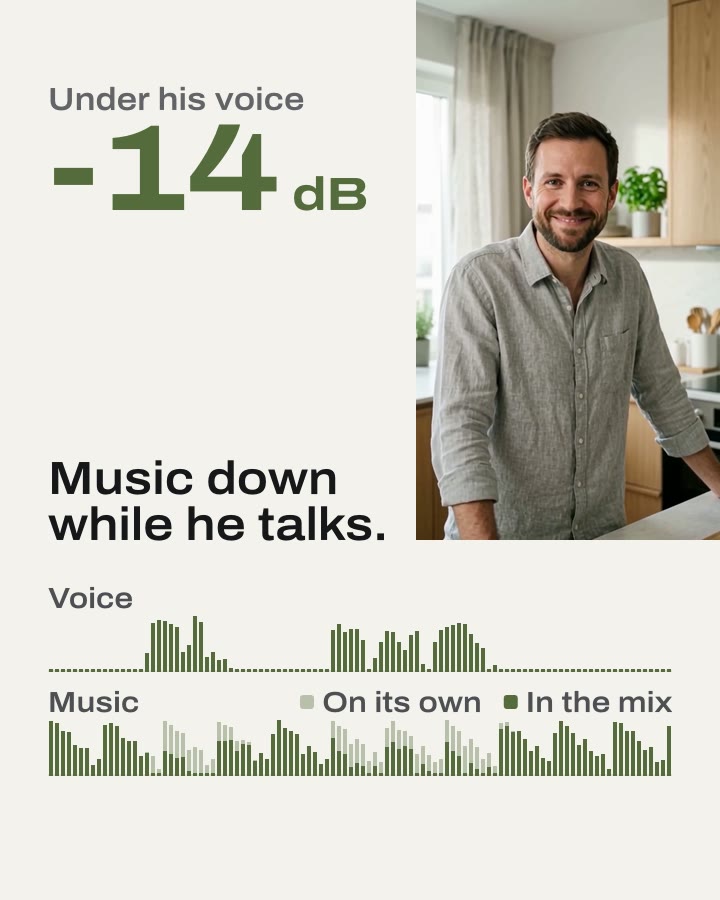
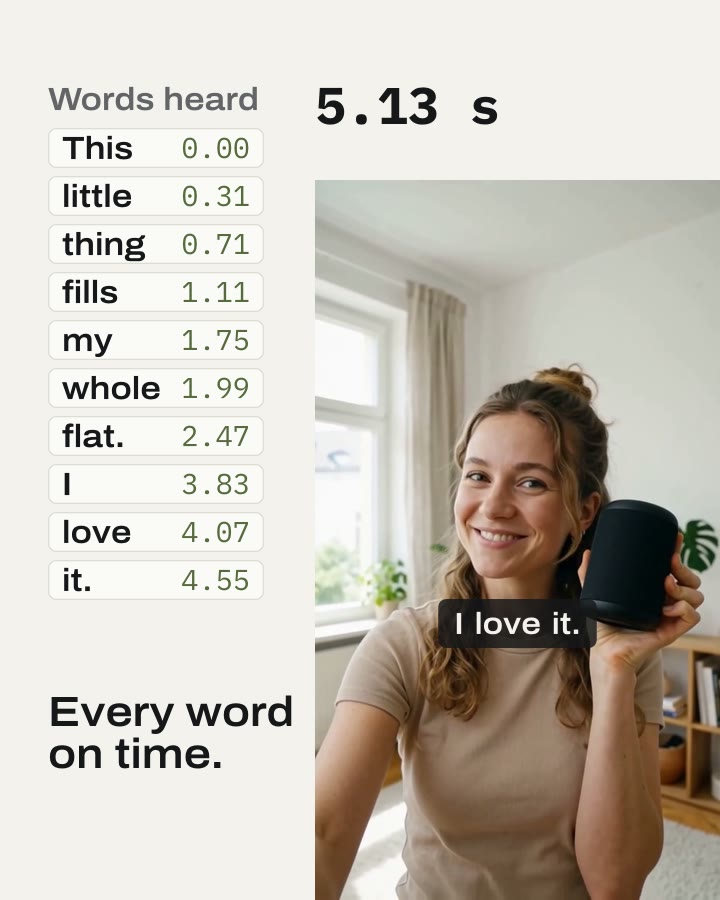
Everyframe, from a prompt: captions word by word, and the music lowered under the voice.
Job 04
Make one edit in three sizes.
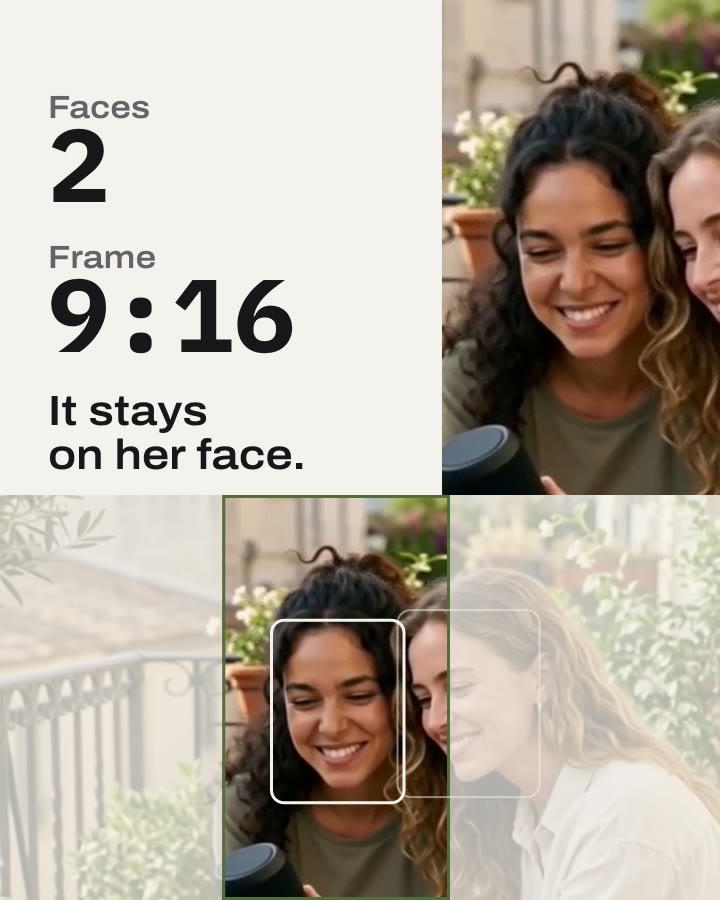
The same video for Reels, the feed and a square post. Cut renders 9:16. Everyframe makes the other sizes and follows the face that matters.
- 1 Render your edit in 9:16, 1080 × 1920.
- 2 Find it in your Library, ready for Reels, Shorts and TikTok.
4:5, 1:1 and 16:9 from Cut Coming soon
Everyframe, from a prompt: a 9:16 frame that follows the face that matters.
02 · Trim and arrange
In Cut todayDrag an edge to trim. Drag a clip to move it.
Each clip on the timeline shows its frames and its sound, so you see where to cut. Edges snap to the playhead, a cut, a beat or a word.
- Trim Drag a clip’s edge, or type its In and Out.
- Move Drag a clip to a new place.
- Split Cut a clip in two at the playhead.
- Undo Every press is one step back. The last 50 are kept.


03 · Transitions
In Cut todayA transition on any seam.
Press the chip between two clips. Pick a move and its length. Use it on one seam, or on every seam.
- Moves 58, in five families: Clean, Slide, Wipe, Shape, Zoom and blur.
- Length From 0.2 to 1 second.
- Render Each move is in the rendered video.

04 · Music and sound
In Cut todayMusic under the picture. Each clip at its own level.
Pick a sound from your Library for the Music track. Set its level and the moment it comes in. Click a clip to type its own level, or tick Mute.


05 · Render
In Cut todayRender it. The video lands in your Library.
Cut makes your edit into one 9:16 video, 1080 × 1920, for Reels, Shorts and TikTok. Composer and Everyframe find it in the same Library.
- Limits Up to 3 minutes and 40 clips an edit.
- Clips Save as clip keeps part of a video for Composer, with nothing copied.


06 · Not yet
Coming soonWhat it does not do yet.
These are coming to Cut. Some of them Everyframe does today, from a prompt. Open what it makes in Cut and finish it by hand.
- Text and titles on their own track Until then · Everyframe makes titles and end cards from a prompt.
- Captions on their own track Until then · Everyframe adds captions that light each word as it is said.
- Sound effects on their own track Until then · Nothing yet.
- A logo or a second clip over the picture Until then · Nothing yet.
- Cuts suggested in the pauses Until then · Everyframe cuts the long pauses from a prompt.
- Edits suggested on the beat Until then · Everyframe cuts your clips on the beat of a song.
- A moment slowed down, then sped back up Until then · Nothing yet.
- 4:5, 1:1 and 16:9 from the same edit Until then · Everyframe makes every format and follows the face that matters.
Each suggestion will wait for you. You keep it or drop it.
07 · FAQ
Questions about Cut.
What is Cut?
Cut is Everyframe’s video editor. It runs in your browser. You trim, split and arrange your clips on a timeline, with transitions between them and music underneath.
When do I use Cut, and when Everyframe?
Use Cut when you want to make each cut yourself. Ask Everyframe when a job is slow by hand, like captions on every word or every size of a video. You can open what Everyframe makes in Cut and change it by hand.
Do I need to install anything?
No. Cut runs in your browser. Your clips stay in your Everyframe Library, where every tool finds them.
How long can an edit be?
Up to 3 minutes, with up to 40 clips. Cut renders it as one 9:16 video into your Library.
What does Cut cost?
Cut comes with every Everyframe plan. The plans are on the pricing page .